Stop Copy-Pasting Your ChatGPT History

We've all been there. You just spent an hour brainstorming a critical marketing campaign, drafting a complex report, or deeply researching a new topic with ChatGPT. It generated the exact structure you needed and caught a massive gap in your reasoning.
Now, you need to share this context with your team or save it to your local files. So, you grab your mouse, highlight from the top, scroll aggressively to the bottom, hit Cmd+C, and paste it into Slack, Notion, or Word.
The result? A completely unreadable mess.

All the clear formatting is gone. The bold text, the structured lists, and the tables are broken. You're left manually re-formatting the entire document. It's an infuriating workflow interrupt that completely negates the speed advantage of using AI in the first place.
The Fix: Real Export Formats
Whether you are a marketer, a researcher, or a business owner, you don't need raw, messy text blobs. You need structured, readable documents. Having your conversational history in a workable format means you can instantly plug it into your knowledge base, share it directly with a client, or archive it securely.
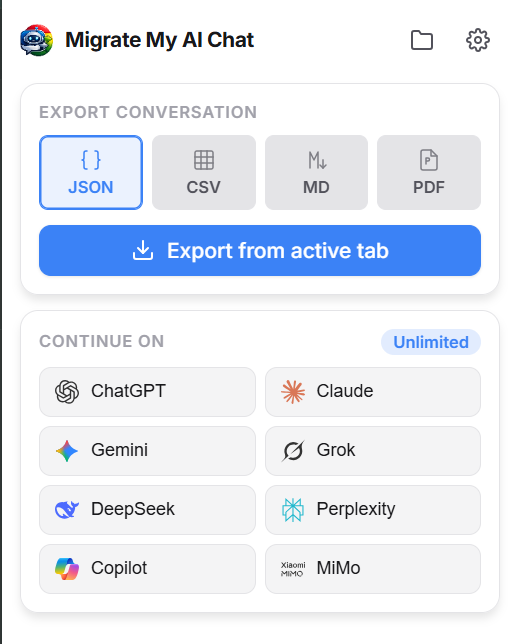
This exact frustration is why we built the export engine inside Migrate My AI Chat. Instead of fighting the browser, you get one-click exports directly into the format you actually use.
1. Markdown (For Writers & Note-Takers)
The perfect solution for modern note-takers. Exporting to Markdown preserves your headings, lists, and formatting perfectly. You can instantly drag this `.md` file into Obsidian, Notion, or Roam Research without any manual cleanup required.
2. JSON (For Automation & Developers)
If you're building workflows, storing data for automation, or running evaluations, you need structured data. The extension structures the entire thread cleanly so it's programmatically accessible the second it hits your local machine.
3. PDF (For Clients & Stakeholders)
Sometimes you need to send AI research to a client or team member who just wants a clean document. The PDF export strips out the UI noise, preserves the elegant formatting, and gives you a professional document ready to attach to an email.
4. CSV (For Spreadsheets & Analytics)
Need to run a quick analysis, filter specific responses, or organize massive lists? The CSV export dumps the dialogue into neat columns, perfect for aggressively filtering and sorting in Excel or Google Sheets.
The Ultimate Backup: Live Migration
Exporting to disk is great. But what happens when OpenAI's servers go down exactly when you need to finish a project? Or what if a new, smarter AI model just dropped and you want to see how it handles your ongoing 40-message brainstorming session?
You don't want a file. You want to resume the conversation.
This is where Live Migration comes in. Our extension acts as a universal clipboard between the monolithic models. With one click, your entire context window is scooped out of ChatGPT and injected straight into Claude or Gemini. You don't start over—you just switch engines mid-flight.
Take Back Your Data
Stop paying the manual formatting tax. Get your conversations out of the walled gardens and onto your own machine in the format you actually need.